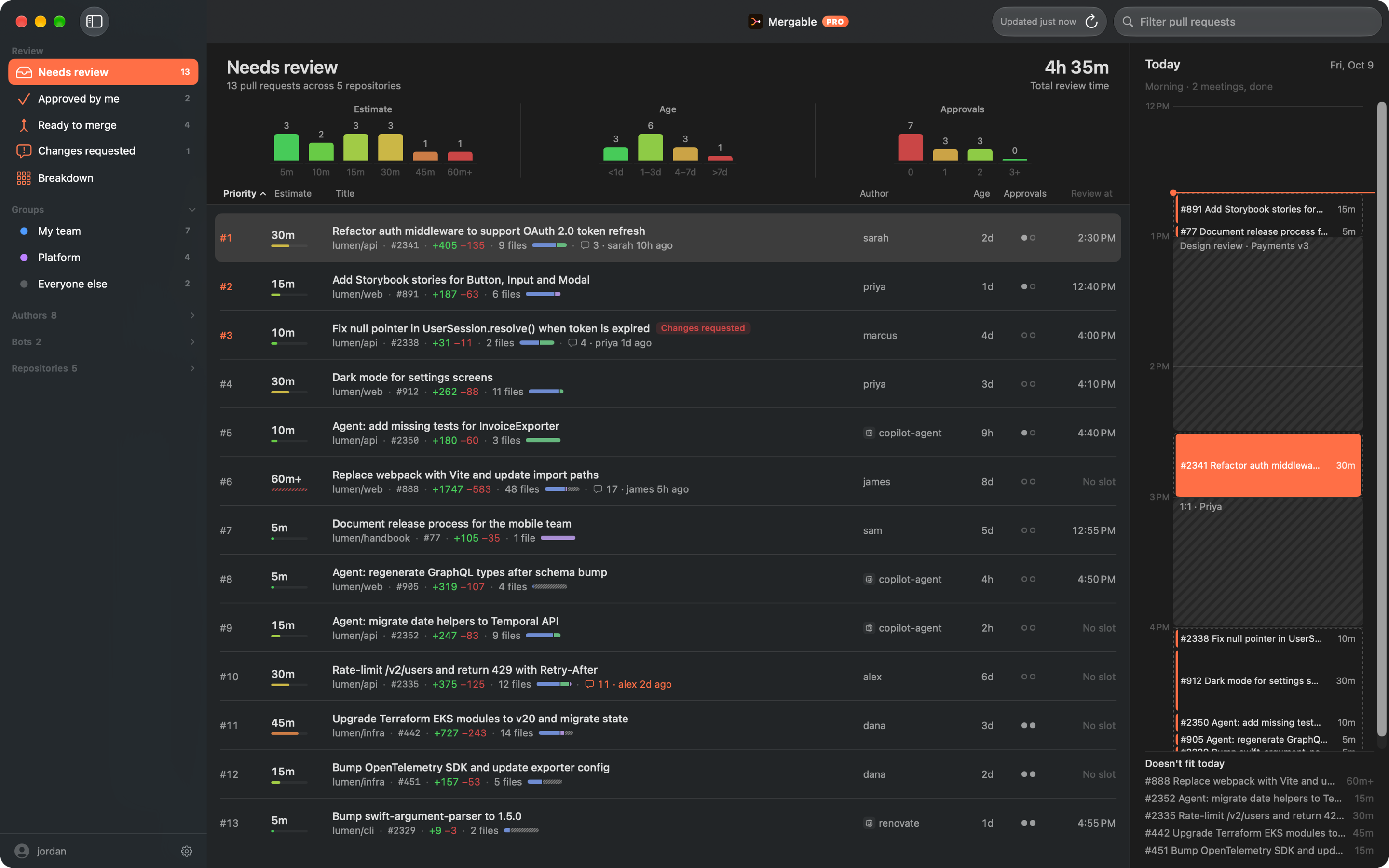
AI writes code faster than anyone can review it. Mergable sits in your Mac's menu bar, sorts every pull request waiting on you, and tells you which to review next — and when today you'll have time to do it.
Copilots and coding agents open pull requests around the clock. Every one still needs a person to read it, and in your inbox they all look equally urgent. So the five-minute fixes wait behind the hour-long refactors, the PR that's one approval from shipping sits idle, and review turns into the thing you catch up on after hours.
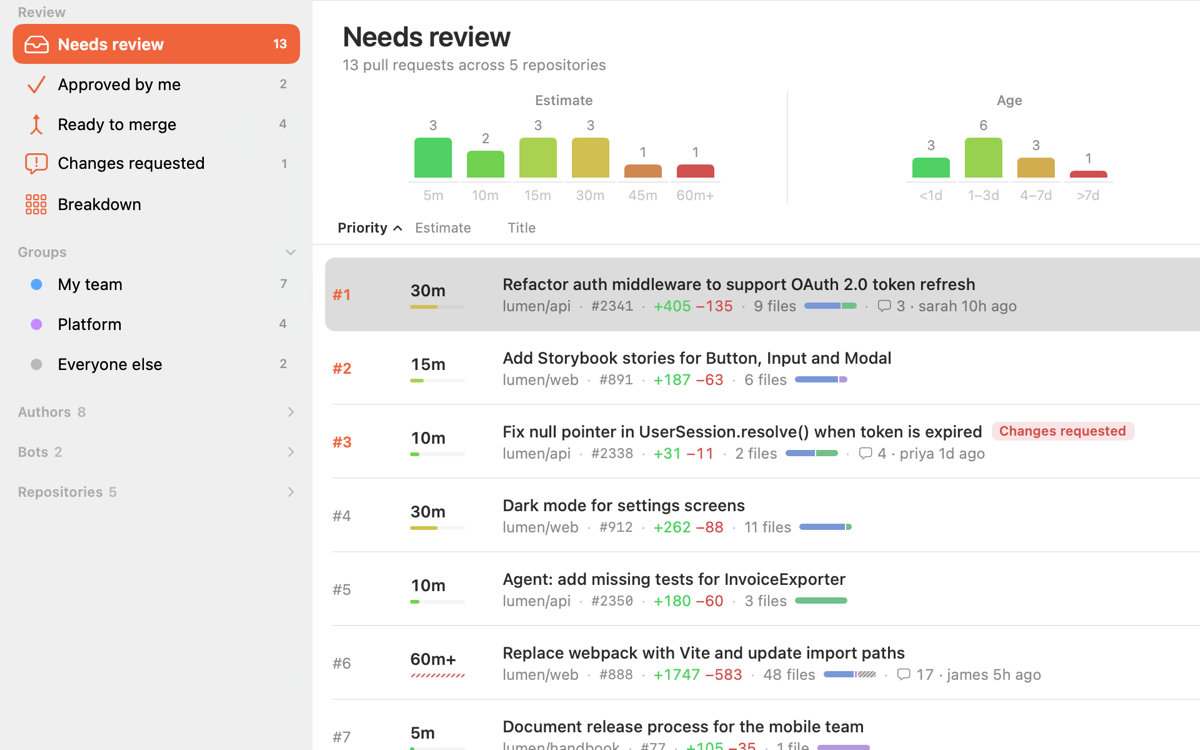
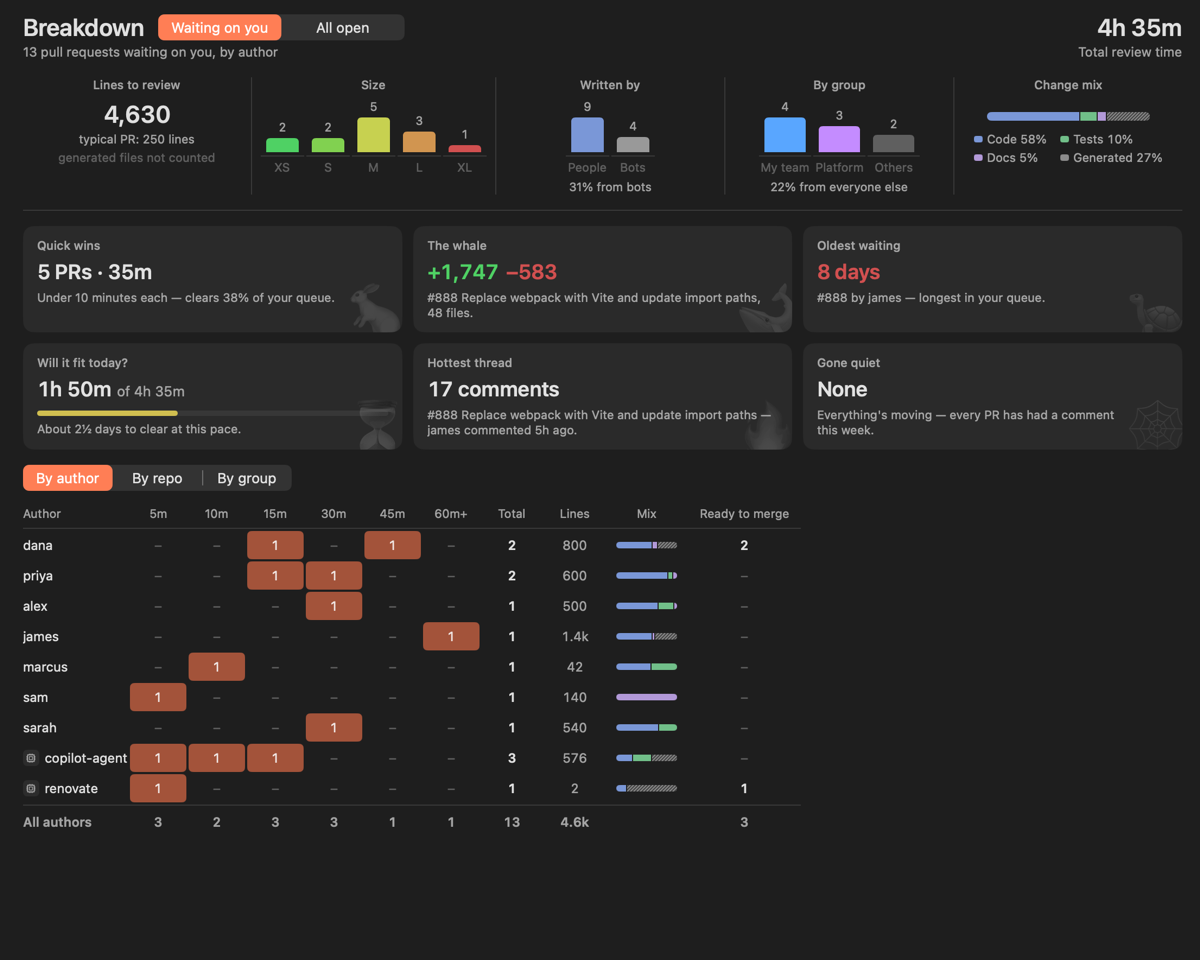
Mergable reads each pull request's changed files and estimates how long it will take to review — five minutes or an hour — before you open it. Color-coded charts show where your time is going, how long pull requests have waited and which still need approvals.
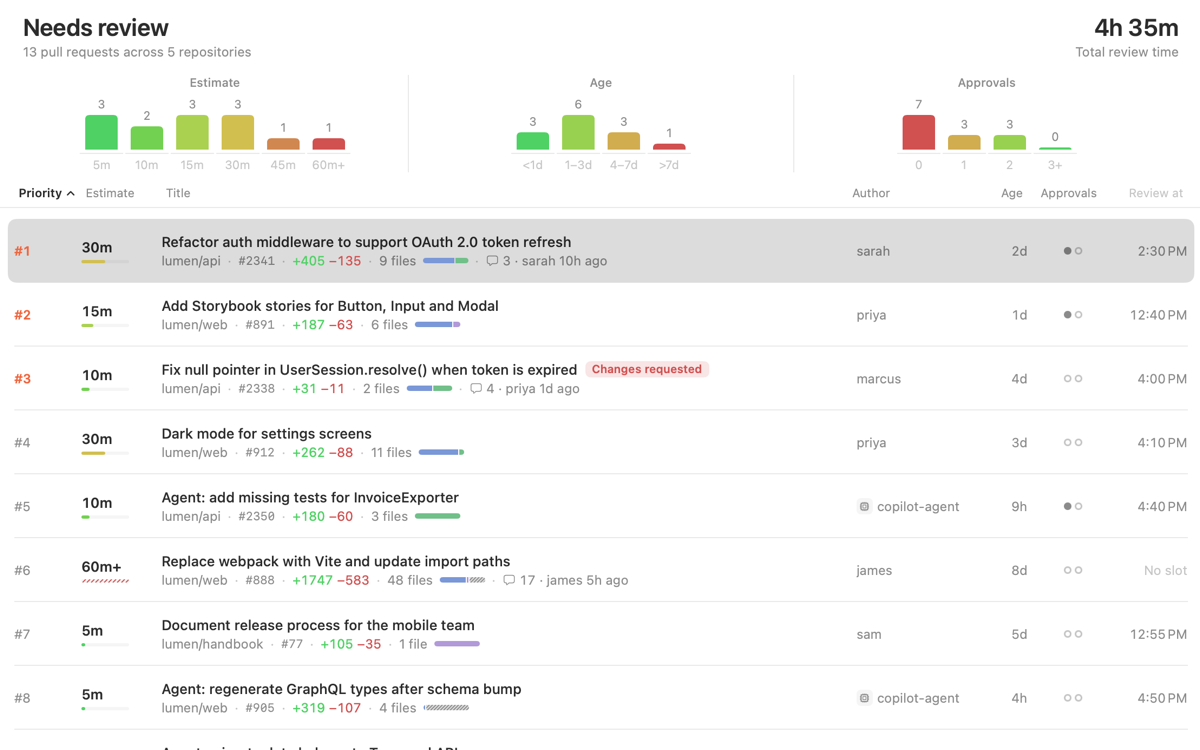
Choose what comes first — pull requests one approval from merging, your team's, the oldest or the quickest — and Mergable ranks your whole queue in that order. Group your teammates to see how much comes from them and how much from everyone else.
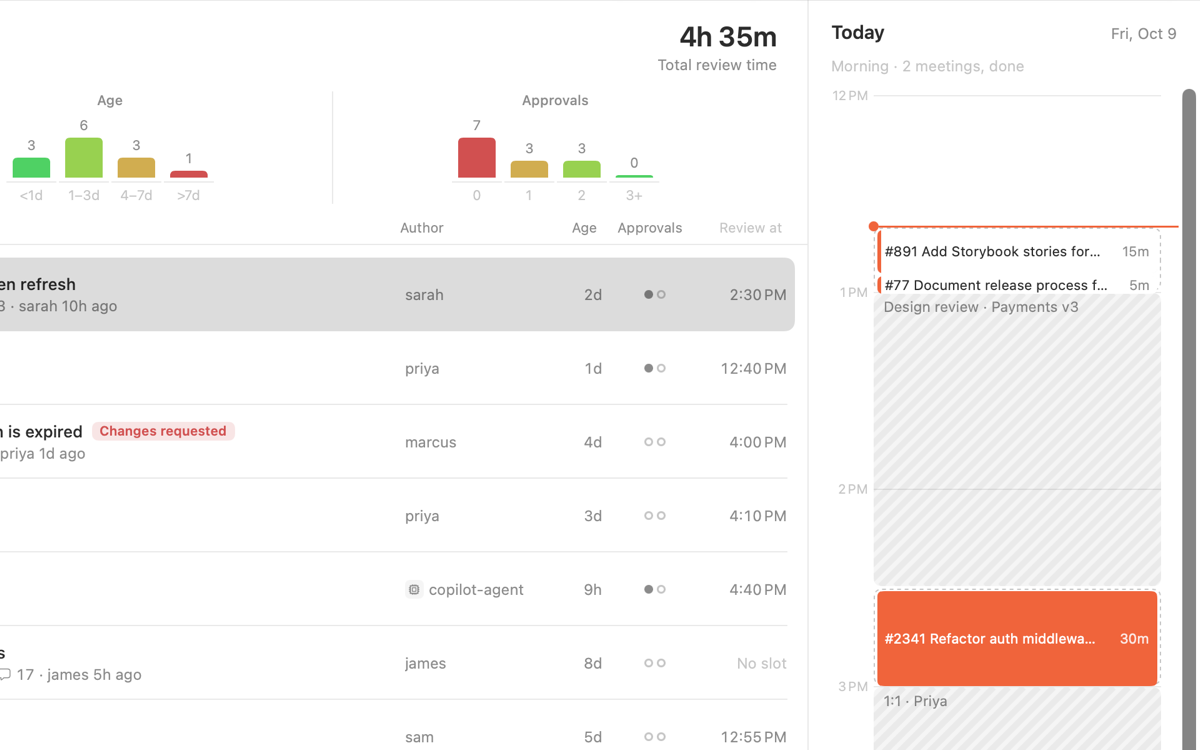
It finds the free time on your calendar and fits reviews into the gaps between meetings, back to back. A reminder tells you when it's time to start.
The breakdown turns a long list into a picture: every author and repository, how many reviews each needs, how long they'll take and how many are ready to merge. Above it: how many lines are waiting, how much of your queue was written by bots, and the mix of code, tests and generated files. Click any number to jump straight to those pull requests.
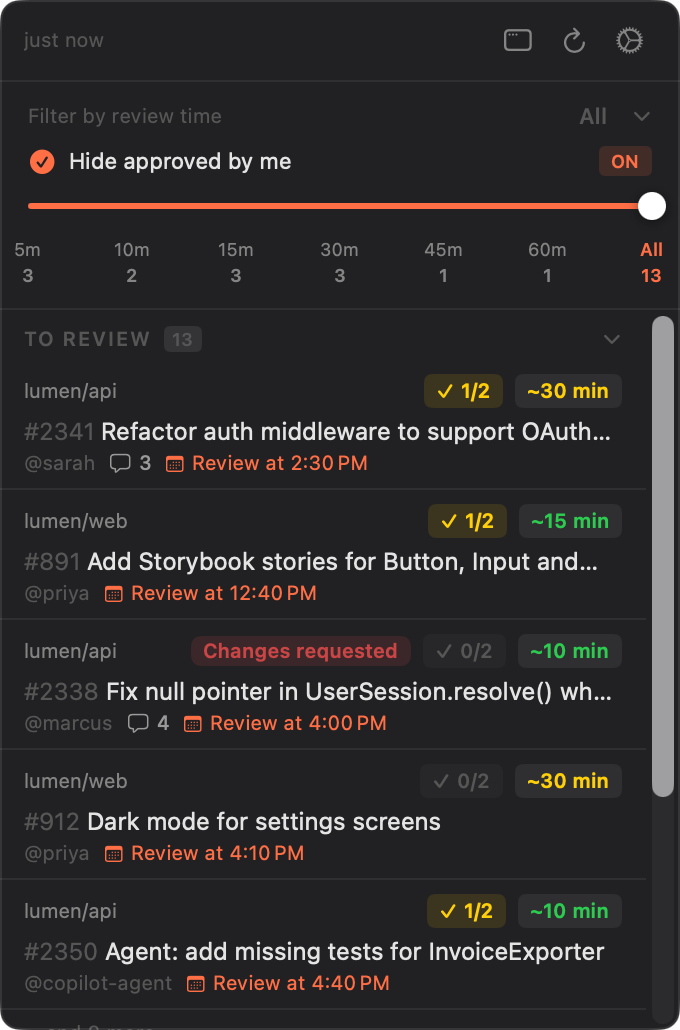
Mergable sits next to the clock with a count of the pull requests waiting on you. Click it for the short list: filter by how much time you have, see what's scheduled, and jump straight to GitHub.
Optional reminders before and at each scheduled review, so the plan actually happens.
See who's waiting on you, how many reviews each needs and how long they'll take.
Pull requests that already have enough approvals, collected in one list.
By estimate, title, author, age or approvals — or click a bar in the estimate, age or approvals chart.
Works with a classic or fine-grained GitHub token that can read your pull requests — nothing more.
Turn on launch at login and it's ready every morning.
No account, no servers, no tracking. Your GitHub token stays in your Mac's Keychain and talks only to GitHub, and your calendar never leaves your Mac. Read the privacy policy.
Yes. Mergable reads the calendars already on your Mac through Apple's Calendar, so the easiest way is to add your account to macOS once:
Your calendar stays on your Mac — Mergable only looks at when you're free and busy.
On your Mac. Your token is kept in the macOS Keychain and sent only to GitHub. Calendar data never leaves your Mac. See the privacy policy.
Check that your token has the right access (a classic token with repo, or a fine-grained token with Pull requests: Read-only) and hasn't expired, then click refresh. A fine-grained token only sees the repositories and organizations you gave it.
From the size and type of each pull request's changed files, calculated on your Mac. You can tune what's ignored in Settings → Estimation.
Yes — turn on Launch Mergable at login in Settings → General.
Right-click the menu bar icon and choose Quit Mergable.
We know. The “e” is in a separate pull request that's still waiting for review. Mergable estimates it at under five minutes, so any day now.
Mergable is coming soon to the Mac App Store, for macOS 13 Ventura and later.
 13
13